How to Borrow Library eBooks to Your Pocket E‑Reader: Step‑by‑Step Guide for Libby, OverDrive & EPUB
Introduction
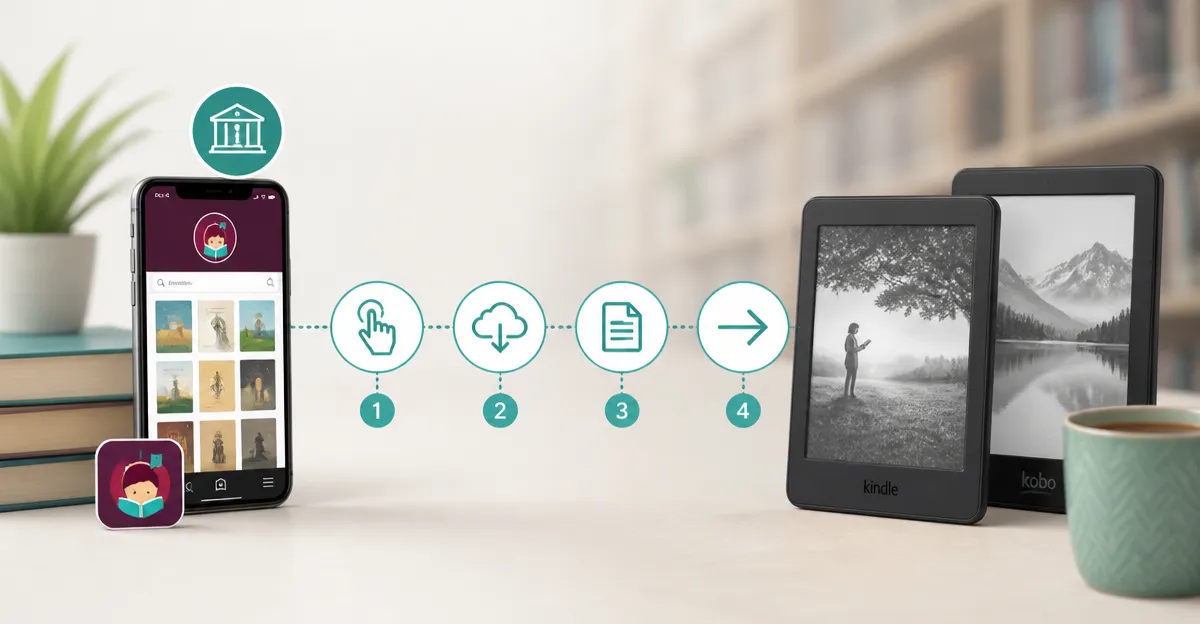
In this guide the reader will learn how to borrow digital books from a public library and transfer them to a pocket e‑reader for offline reading. The process involves using the Libby or OverDrive applications, obtaining EPUB files when necessary, and delivering those files to a compatible device. Mastering these steps enables one to build a portable library without incurring additional purchase costs, while also preserving battery life and reading comfort.
The value of this knowledge lies in the ability to access a vast catalog of titles, avoid distractions from multi‑purpose tablets, and enjoy a paper‑like reading experience on devices such as the Kindle Paperwhite or Kobo Clara Colour. By following the structured instructions, any intermediate user can complete the workflow efficiently.
What You’ll Need
- A library card that provides digital borrowing privileges.
- A pocket e‑reader that supports either Amazon Kindle format or EPUB files.
- An internet‑connected computer or smartphone for initial download.
- Optional accessories such as a USB‑C cable or wireless charger to sync the device.
Recommended devices are listed in the steps that follow, and each recommendation includes price, rating and key features.
Step 1 – Prepare Your E‑Reader
Before borrowing any titles, ensure that the e‑reader is fully charged and updated to the latest firmware. For Amazon users the Kindle Paperwhite offers a 7‑inch glare‑free display, waterproof construction and up to twelve weeks of battery life on a single USB‑C charge. Its 16 GB storage comfortably holds thousands of books, and the high contrast ratio reduces eye strain during long sessions.
The Paperwhite’s fast page turns and adjustable warm front light make it ideal for reading in bright sunlight or in darkness, which is essential when borrowing titles that may be read at any time of day. Users who require even more storage or wireless charging may consider the Kindle Paperwhite Signature Edition. This model adds 32 GB of internal memory, an auto‑adjusting front light and the convenience of a wireless charging dock, eliminating the need for a cable during nightly recharges.
If the library provides EPUB files, a device that supports the open format is required. The Kobo Libra Colour delivers a 7‑inch colour E‑Ink screen, waterproof rating of IPX8 and full EPUB compatibility, allowing direct transfer without conversion. For a smaller footprint the Kobo Clara Colour provides a 6‑inch display, ComfortLight PRO technology and a lightweight chassis, making it easy to carry in a pocket.
Choose the device that aligns with personal preferences for screen size, colour support and storage capacity. All recommended products are in stock and carry ratings above 4.4 stars.
Step 2 – Install Libby or Access OverDrive
The next step is to obtain the library’s borrowing application. Libby, a streamlined client for OverDrive, is available for iOS, Android and as a web app. Install the app on a smartphone or tablet, sign in with the library card, and browse the catalog. OverDrive’s website can also be accessed directly from a computer if a mobile device is not preferred.
When a title is available, select “Borrow” and choose the delivery option “Send to device”. For Kindle‑compatible books the option will appear as “Kindle”. Selecting this option automatically adds the title to the user’s Amazon account, after which the Kindle Paperwhite or Kindle Paperwhite Signature Edition will sync the book over Wi‑Fi.
For EPUB titles, choose “Read on device” and then “Download”. The file will be saved to the phone’s Downloads folder, ready for transfer to a Kobo device.
It is advisable to enable automatic updates in the Libby settings so that newly borrowed books appear on the e‑reader without manual intervention.
Step 3 – Transfer EPUB Files to a Kobo Device
If the borrowed title is in EPUB format, a direct transfer to a Kobo e‑reader is required because Amazon devices accept only proprietary formats. Connect the Kobo Libra Colour or Kobo Clara Colour to a computer using the supplied USB‑C cable. The device will appear as an external drive named “KOBOeReader”.
Drag the EPUB file from the computer’s Downloads folder into the “Books” folder on the Kobo. Safely eject the device before disconnecting the cable. The e‑reader will index the new file and display it on the home screen within seconds.
For users who own the Kindle Paperwhite Signature Edition, wireless charging can be employed while the device is idle, ensuring that the battery remains topped up for extended reading sessions. The auto‑adjusting front light will automatically adapt to ambient lighting, reducing the need for manual brightness adjustments after each transfer.
When using the Kobo Libra Colour, the colour E‑Ink display renders book covers and illustrations with vivid accuracy, enhancing the experience for graphic novels and textbooks that rely on colour differentiation.
Step 4 – Manage Your Library Loans
Both Libby and OverDrive provide a “Loans” shelf where active checkouts are listed. Users should monitor due dates and return titles early if the maximum loan period is not required. Returning a book frees up storage space on the e‑reader, which is particularly important for devices with limited capacity such as the Kindle (16 GB) or Kobo Clara Colour (16 GB).
Renewal requests can be made directly within the app, provided the library permits extensions. If a title is placed on hold, the app will send a notification when the item becomes available, allowing immediate download to the e‑reader.
To keep the e‑reader organized, create collections or tags within the device’s library management interface. The Kindle Paperwhite allows the creation of “Collections”, while Kobo devices support “Folders”. This practice mirrors the organization of physical books on a bookshelf.
Regularly syncing the e‑reader with Wi‑Fi ensures that reading progress, notes and highlights are backed up to the cloud, preventing data loss if the device is misplaced.
Tips & Pro Tips
- Enable “Airplane Mode” while reading to extend battery life; the e‑reader will continue to display the downloaded book without requiring a network connection.
- Use the warm front‑light setting on the Kindle Paperwhite or the ComfortLight PRO on the Kobo Clara Colour to reduce blue‑light exposure during evening reading.
- For large collections, consider the 32 GB capacity of the Kindle Paperwhite Signature Edition; this model can store thousands of novels and dozens of audiobooks without needing frequent deletions.
- When borrowing graphic novels, prefer a colour e‑reader such as the Kobo Libra Colour to experience the artwork as intended.
- Take advantage of library promotions that provide free audiobooks; both Kindle and Kobo support Bluetooth audio playback, allowing users to listen through wireless headphones.
Troubleshooting
Problem: The borrowed Kindle book does not appear on the Kindle Paperwhite.
Solution: Verify that the Amazon account used in Libby matches the account registered on the Kindle. Force a sync by selecting “Settings → Sync My Kindle” on the device. Ensure Wi‑Fi is active and that the library’s server is not experiencing downtime.
Problem: EPUB file fails to appear after transfer to a Kobo device.
Solution: Confirm that the file extension is .epub and that it was placed in the “Books” folder, not the “Documents” folder. Eject the device safely before disconnecting the cable, and restart the Kobo to trigger a library refresh.
Problem: Battery drains rapidly on a Kobo Clara Colour.
Solution: Reduce the front‑light brightness and disable Bluetooth when not in use. The device’s ComfortLight PRO automatically lowers blue light, but manual adjustment can further conserve power.
Conclusion
The steps outlined above empower the reader to borrow library e‑books through Libby or OverDrive and enjoy them on a pocket e‑reader without reliance on a tablet or computer. By selecting the appropriate device—whether a Kindle Paperwhite for Amazon‑exclusive formats or a Kobo Libra Colour for EPUB content—one can build a versatile, portable library that supports both text‑only novels and colour‑rich graphic works. Consistent maintenance of loans, proper file transfer techniques and the use of recommended accessories ensure a seamless reading experience for years to come.
Products Mentioned in This Guide
Frequently Asked Questions
How do I borrow eBooks from my public library using Libby or OverDrive?
Install the Libby or OverDrive app, sign in with your library card, search for a title, and tap “Borrow” to download the eBook to your device.
What file format is required to transfer borrowed eBooks to a Kindle Paperwhite?
Kindle Paperwhite requires MOBI or AZW3 files; you may need to convert the library’s EPUB or PDF using a tool like Calibre after removing DRM.
Can I read borrowed eBooks offline on my pocket e‑reader?
Yes, once the eBook is downloaded and, if needed, converted, it can be stored locally on the e‑reader for offline reading.
Do I need a special app to convert OverDrive eBooks to EPUB?
OverDrive often provides EPUB files directly, but if you receive a PDF or other format, a conversion app like Calibre can change it to EPUB.
How do I return borrowed eBooks after I’m finished?
In the Libby or OverDrive app, select the eBook and choose “Return”; the title will be removed from your device automatically.