Introduction
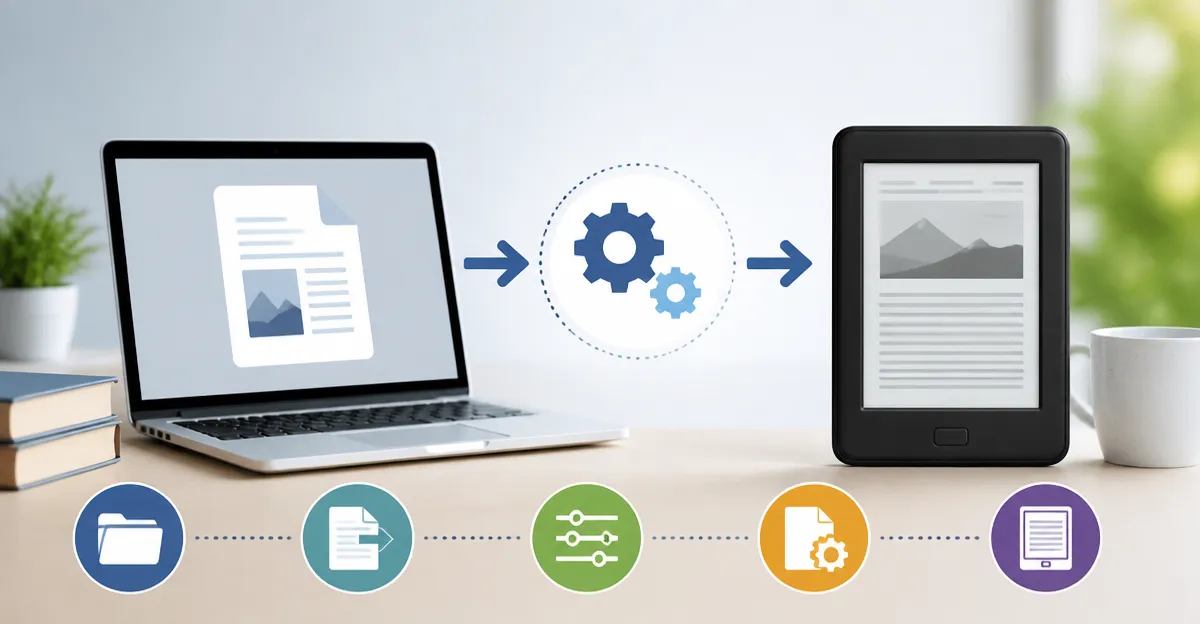
In this guide, the reader will learn how to convert ebooks for small e‑readers, adjust formats for optimal readability, and transfer files efficiently. Understanding the conversion process is valuable because it expands the personal library beyond the limits of proprietary stores. The steps presented are practical, actionable, and suitable for users with intermediate technical confidence. By following the instructions, one can enjoy a seamless reading experience on any compact e‑reader.
What You’ll Need
- Computer with internet access and a modern operating system.
- Calibre – a free, open‑source ebook management and conversion tool.
- USB‑C cable or micro‑USB cable compatible with the chosen e‑reader.
- One of the recommended small e‑readers for testing the conversion workflow.
The recommended e‑readers are listed below; each product link points directly to Amazon for convenience.
Step 1: Choose the Right Small E‑Reader
Selecting an appropriate device is the foundation of a successful conversion workflow. For most users, the Kindle Paperwhite offers a 7‑inch glare‑free display, waterproof construction, and a battery life of up to twelve weeks, making it ideal for extended reading sessions. Users on a tighter budget may prefer the Kindle, which provides a lightweight 6‑inch screen, 16 GB storage, and a price of $149.99. If ultra‑portability is the priority, the XTEINK X3 weighs only 58 g and fits easily into a pocket, though it lacks a front‑light. Finally, readers who value open ecosystems and ComfortLight PRO may opt for the Kobo Clara, which supports EPUB natively and provides waterproof protection. Each device has distinct strengths, and the choice influences the preferred output format.
Step 2: Install a Conversion Tool (Calibre)
Calibre is the industry‑standard software for ebook conversion, metadata editing, and library organization. Download the latest version from the official website and follow the installation wizard; the process typically requires three clicks. After installation, launch Calibre and add your source files by dragging them into the main window or using the “Add books” button. Calibre automatically extracts metadata such as title, author, and cover art, which can be edited later to ensure a polished appearance on the e‑reader.
Step 3: Prepare Your Source Files
Before conversion, verify that the source files are in a supported format such as EPUB, PDF, or MOBI. If the ebook is protected by DRM, legal removal tools must be used in accordance with local copyright law; this guide does not endorse illegal circumvention. Organize files into folders named after the author and title to simplify batch processing later. It is advisable to create a backup of the original files in case conversion produces unexpected results.
Step 4: Convert to the Optimal Format
With the books loaded in Calibre, select a title and click the “Convert books” button. For the Kindle Paperwhite and the basic Kindle, choose “MOBI” or “AZW3” as the output format; these formats preserve Amazon‑specific features such as dictionary lookup. For the XTEINK X3, which does not support Amazon formats, select “EPUB” to maintain compatibility with its firmware. The Kobo Clara also prefers EPUB, allowing direct library integration without conversion to a proprietary format. In the conversion dialog, adjust the “Page setup” to match the device screen size (e.g., 7 in for Paperwhite, 6 in for Kindle, 3.7 in for X3, 6 in for Kobo) to avoid excessive white margins.
Step 5: Transfer Files to the Device
Connect the e‑reader to the computer using the appropriate USB cable; the Paperwhite uses a USB‑C connector, while the basic Kindle and Kobo employ micro‑USB. Once the device appears as a removable drive, open its “Documents” or “Books” folder. Drag the converted files from Calibre’s library folder into the device folder; the transfer typically completes within seconds for a single book. Safely eject the e‑reader before disconnecting to prevent data corruption. After disconnecting, the new titles should appear in the device’s library, ready for reading.
Step 6: Optimize Display Settings
Each e‑reader offers unique display adjustments that enhance readability. On the Kindle Paperwhite, use the “Warmth” slider to shift the screen from white to amber, reducing eye strain in low‑light environments. The basic Kindle provides a similar front‑light with a 25 % brighter maximum, suitable for outdoor reading. The XTEINK X3 lacks a built‑in light, so users should read in well‑lit areas or consider a separate clip‑on reading light. The Kobo Clara features ComfortLight PRO, which adjusts both brightness and color temperature to minimize blue‑light exposure before bedtime.
Tips & Pro Tips
- Batch‑convert multiple titles in Calibre by selecting several books and clicking “Convert books” – this saves time when building a large library.
- Use Calibre’s “Edit metadata” feature to add custom tags such as genre or series number; these tags appear on most devices and aid navigation.
- For the Kindle Paperwhite, enable “Experimental” features like “Page refresh” to reduce ghosting on the E‑Ink display.
- If the XTEINK X3’s screen appears dim, consider a small, battery‑powered clip‑on LED light; this adds versatility without compromising portability.
- Regularly update firmware on all devices to benefit from performance improvements and bug fixes.
Troubleshooting
- Problem: Converted file does not display correctly (missing text or images). Solution: Re‑convert the source as EPUB and then as MOBI, ensuring the “Structure detection” option in Calibre is set to “Auto”.
- Problem: Device does not recognize the transferred file. Solution: Verify that the file extension matches the device’s supported format (e.g., .mobi for Kindle, .epub for Kobo).
- Problem: Battery drains quickly after transfer. Solution: Ensure the device is not left in “Airplane mode off” with Wi‑Fi enabled; disable Wi‑Fi when not needed.
- Problem: Page turns are sluggish on the Kindle. Solution: Reduce the font size slightly and disable “Large Font” options, which can increase rendering time.
Conclusion
This guide has outlined a complete workflow for converting ebooks to formats optimized for small e‑readers, from device selection to final display tweaks. By following the step‑by‑step instructions, readers can expand their digital libraries, enjoy longer battery life, and experience comfortable reading in any environment. The recommended products provide reliable hardware tools that complement the conversion process, yet the techniques remain applicable to any compatible device. Embrace the flexibility of open formats and continue exploring new titles with confidence.
Products Mentioned in This Guide
Frequently Asked Questions
What ebook file formats work best on small e‑readers?
Most small e‑readers support MOBI, AZW3, and EPUB; choose the format recommended by the device manufacturer for best compatibility.
How does Calibre convert ebooks for a compact device?
Calibre reads the source file, lets you select the target format, and automatically adjusts layout and metadata for the chosen e‑reader.
Is a USB‑C or micro‑USB cable required to transfer converted books?
Yes, connecting the e‑reader via its compatible USB cable lets you copy the converted files directly to the device’s library folder.
Can I batch‑convert multiple ebooks at once with Calibre?
Absolutely—select several titles, choose ‘Convert books’, set the output format, and Calibre will process them all in one batch.
How can I ensure optimal readability after conversion?
Use Calibre’s conversion settings to adjust font size, margins, and line spacing, then preview the result on the e‑reader before finalizing.