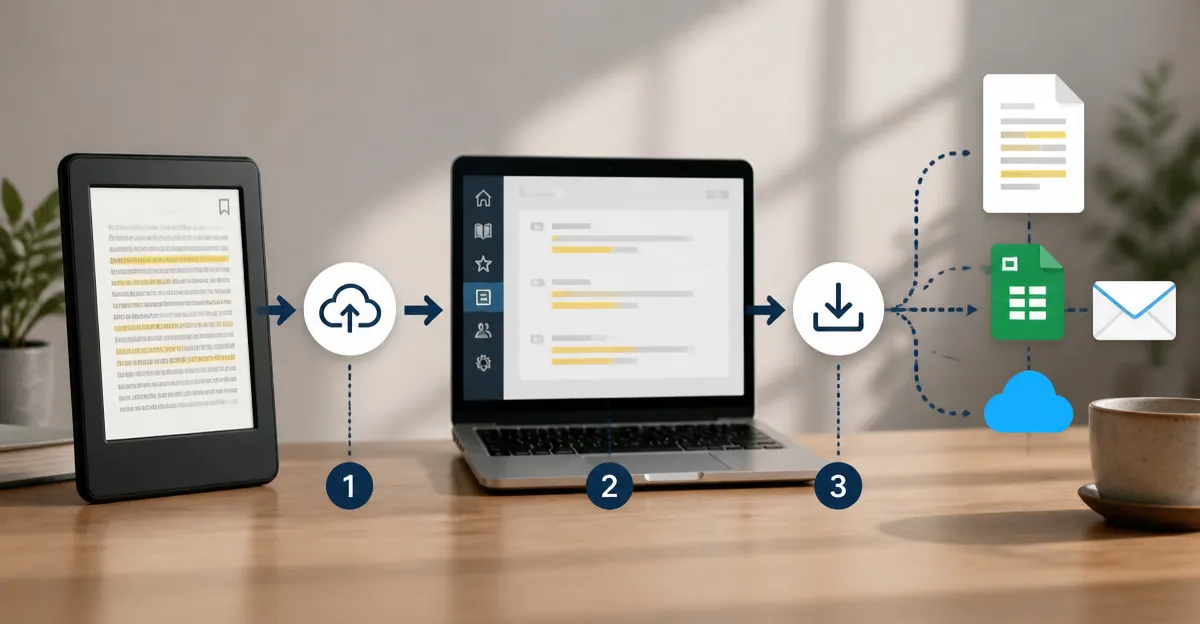
How to Export Annotations from Your Pocket E‑Reader: A Quick Step‑by‑Step Guide to Save, Share & Backup Highlights
Introduction
Exporting highlights and notes from a pocket e‑reader allows readers to preserve valuable insights, reference material, and personal reflections. This guide explains how to capture, back up, and share annotations from Kindle devices, ensuring that treasured passages are never lost. By following the steps, one can create organized files, sync them across devices, and distribute them to colleagues or study groups. The process is valuable for students, researchers, and avid readers who wish to turn digital notes into reusable knowledge.
What You’ll Need
- A compatible Kindle device (e.g., Amazon Kindle 16GB for reading‑only tasks).
- A Kindle Scribe model for advanced note‑taking and direct export (e.g., Kindle Scribe 16GB or Kindle Scribe 64GB for larger libraries).
- Wi‑Fi connectivity.
- A computer or mobile device with access to the Kindle cloud or email.
- Optional: A USB‑C cable for direct file transfer.
Step 1: Sync Your Highlights to the Kindle Cloud
The first essential action is to ensure that all annotations are uploaded to Amazon’s cloud service. Open the device, navigate to Settings, and enable "Whispersync for Books." This feature automatically backs up highlights, bookmarks, and notes whenever the device connects to Wi‑Fi. The Amazon Kindle 16GB offers up to six weeks of battery life, allowing users to read for extended periods without frequent charging, which encourages regular syncing when a network becomes available. The device’s 16 GB storage holds thousands of books, ensuring that all highlighted content remains accessible.
Step 2: Access the "My Clippings" File (Basic Kindle)
For readers using the standard Kindle, the simplest export method is the "My Clippings.txt" file stored on the device. Connect the Kindle to a computer using a USB‑C cable, then open the "documents" folder. Locate "My Clippings.txt" and copy it to a local folder. This file consolidates every highlight and note across all books, formatted with clear timestamps. Because the Amazon Kindle 16GB is lightweight and compact, the physical transfer is quick and unobtrusive. Users should verify that the file includes the desired annotations before proceeding.
Step 3: Use the Kindle Scribe Export Feature for Structured Notes
Owners of a Kindle Scribe 16GB or Kindle Scribe 64GB benefit from built‑in export tools that convert handwritten notes into clean text files. Open the AI Notebook, select the desired notebook, and tap the share icon. Choose "Export as PDF" or "Export as TXT" to send the file to a registered email address or to a cloud service such as Google Drive. The Scribe’s 10.2‑inch glare‑free display and premium pen provide a paper‑like writing experience, making the notes accurate and legible before export. With up to 64 GB of internal storage, the larger model accommodates extensive PDF libraries and extensive handwritten collections without the need for external memory cards.
Step 4: Leverage the Kindle Cloud Reader for Online Access
After syncing, users can log into Kindle Cloud Reader from any web browser. Navigate to "Your Highlights" to view a consolidated list of all annotations. From this view, select "Export" to download a CSV file containing book titles, highlighted passages, and timestamps. This method requires no physical connection and works equally well for the basic Kindle and the Scribe models, as both rely on Amazon’s cloud infrastructure. The CSV format is ideal for importing into spreadsheet software for further analysis or for sharing with study groups.
Step 5: Share Highlights via Email or Messaging Apps
Once a file is prepared, it can be attached to an email or sent through messaging platforms. The Kindle Scribe’s integration with email allows users to select "Send to Email" directly from the export menu, bypassing the need to open a separate email client. For the basic Kindle, after copying "My Clippings.txt" to a computer, attach the file to an email and send it to collaborators. The device’s long battery life ensures that the export process can be completed without interruption, even during extended reading sessions.
Step 6: Back Up Your Annotations Regularly
To safeguard against data loss, schedule a weekly backup of the exported files to a cloud storage service such as OneDrive or Google Drive. The Kindle Scribe’s ability to export directly to these services streamlines the process: open the exported file, tap the cloud icon, and choose the destination folder. For the basic Kindle, automate the backup by creating a script that copies the "My Clippings.txt" file from a mounted Kindle drive to a cloud‑synced folder each time the device is connected. Regular backups preserve the research trail and ensure that highlights remain accessible across devices and operating systems.
Tips & Pro Tips
- Use Dark Mode for Better Contrast: The Kindle’s adjustable front light and dark mode improve readability when reviewing highlights on the device.
- Organize Notebooks on the Scribe: Create separate notebooks for fiction, non‑fiction, and professional research to simplify later export.
- Leverage AI Summarization: The Scribe’s built‑in AI can summarize long note collections, turning a dense set of highlights into a concise overview before export.
- Export in Multiple Formats: Choose PDF for visual fidelity, TXT for plain‑text editing, and CSV for spreadsheet analysis.
- Rename Export Files Consistently: Include the book title and date in the filename (e.g., "Sapiens_2024-09-27_Notes.pdf") to locate files quickly.
Troubleshooting
Problem: Highlights do not appear in the cloud.
Solution: Verify that "Whispersync for Books" is enabled in Settings, ensure the device is connected to Wi‑Fi, and manually sync by selecting "Sync My Kindle" from the menu.
Problem: Exported PDF is blank.
Solution: Confirm that the notebook contains saved strokes; the Scribe automatically saves after each pen lift, but a forced save can be triggered by tapping the checkmark icon.
Problem: "My Clippings.txt" is missing.
Solution: Some newer Kindle models store highlights exclusively in the cloud; use the Kindle Cloud Reader to export instead.
Conclusion
By following these steps, readers can efficiently export, share, and back up their Kindle annotations, turning fleeting highlights into lasting knowledge assets. Whether using a lightweight Amazon Kindle 16GB for pure reading or a feature‑rich Kindle Scribe 16GB/Kindle Scribe 64GB for advanced note‑taking, the workflow remains consistent and reliable. Regular backups and organized exports ensure that valuable insights are always within reach, empowering readers to study, collaborate, and reflect without losing any important information.
Products Mentioned in This Guide
Frequently Asked Questions
How can I export highlights and notes from a Kindle device?
Use the Kindle's built-in "Export Notes" feature or connect the device to a computer and copy the "My Clippings.txt" file.
What file format does Kindle use for exported annotations?
Exports are typically plain‑text (.txt) or CSV files, which can be opened in any text editor or spreadsheet program.
Can I export annotations directly from a Kindle Scribe?
Yes, the Kindle Scribe includes a "Share" option that lets you email or save notes as a PDF or text file.
How do I back up my exported annotations for future use?
Store the exported files in cloud storage (e.g., Google Drive, Dropbox) or sync them to a note‑taking app like Evernote.
Is it possible to share Kindle highlights with others?
After exporting, you can attach the file to an email, upload it to a collaboration platform, or paste the text into a shared document.