Introduction
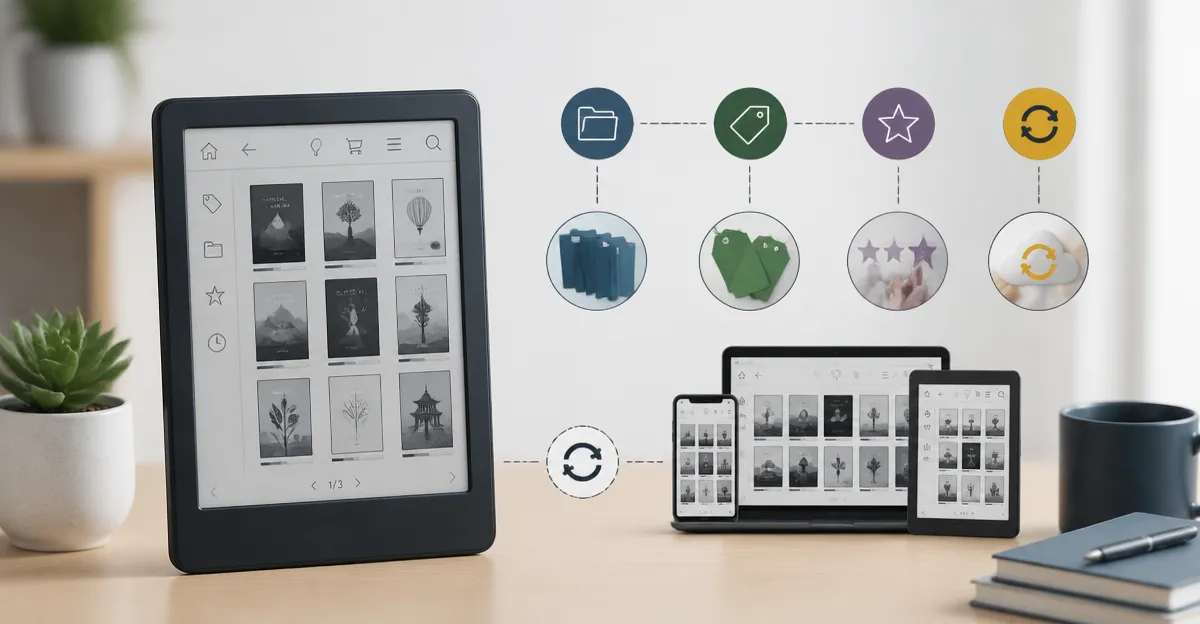
In this guide, the reader will discover a systematic approach to organizing an eBook library on any e‑reader. Effective organization reduces time spent searching for titles and enhances the reading experience. The article covers creating collections, managing folders, applying tags, and synchronizing content across devices. By following the steps, one can maintain a tidy digital library that scales with growing collections.
What You'll Need
- A compatible e‑reader (e.g., reMarkable Paper Pro, Kobo Elipsa 2E, or BOOX Go 7 B/W)
- Internet connection for cloud sync
- Optional: a secondary device for backup (e.g., a tablet or PC)
- Optional accessories such as a protective case or external storage
Step‑by‑Step Instructions
1. Choose the Right e‑Reader and Set Up Your Account
The first decision influences how collections and tags are managed. The reMarkable Paper Pro offers an 11.8" color canvas, a paper‑like writing experience, and cloud sync for notes and PDFs. Priced at $679.00 with a 4.2‑star rating, it excels for users who value handwriting conversion and a distraction‑free interface.
If reading is the primary goal, the Kobo Elipsa 2E provides a 10.3" E Ink Carta display, 32 GB storage, and the included Kobo Stylus 2 for annotation. At $399.99 and a 4‑star rating, it balances cost with robust note‑taking features.
For a hybrid Android‑based solution, the BOOX Go 7 B/W delivers a 7" HD ePaper screen, 4 GB RAM, and full Android 13 support. Its $269.99 price and 4‑star rating make it an affordable option for power users who want app flexibility.
Create an account on the manufacturer’s cloud service (reMarkable Connect, Kobo Cloud, or BOOX Cloud) and verify the device via Wi‑Fi. This step ensures that later syncing actions will propagate automatically.
2. Import Your eBooks and Documents
Use the desktop companion app or a USB‑C cable to transfer files. For reMarkable, the Paper Pro syncs PDFs and ePub files directly to the cloud, allowing access from any linked device. The Kobo Elipsa 2E supports side‑loading via a web interface; simply drag files to the device’s IP address after connecting to the same network.
On the BOOX Go 7, enable “USB OTG” in the settings and copy files to the internal 64 GB storage or an inserted micro‑SD card. Because the device runs Android, any file manager (e.g., Files by Google) can be used for bulk imports.
After the transfer, verify that each title appears in the library view. This verification prevents orphaned files that could clutter later folder structures.
Organize imported files into a temporary “Unsorted” folder; this placeholder simplifies the next step.
3. Create Collections or Folders
Collections group books by theme, genre, or project. On the reMarkable Paper Pro, tap the “Folder” icon, select “Create New Folder,” and name it (e.g., “Professional Development”). The device automatically reflects the new folder across all synced devices, preserving the hierarchy.
Kobo Elipsa 2E users can use the “Library” view, press the three‑dot menu, and choose “Create Collection.” Collections can be nested, allowing a “Science Fiction” collection inside a broader “Fiction” folder. The built‑in tagging system complements collections for cross‑category searching.
BOOX Go 7 leverages Android’s native file system. Open the “Files” app, navigate to the “Books” directory, and create subfolders such as “Travel Guides” or “Cookbooks.” Because the device supports third‑party apps, users may also install “Folder Organizer” from the Play Store for bulk operations.
When creating folders, keep names concise yet descriptive; this practice improves discoverability when using the search function later.
4. Apply Tags for Multi‑Dimensional Organization
Tags enable a book to belong to multiple logical groups without duplication. The reMarkable Paper Pro provides a “Tag” field when viewing a document’s details; type tags like “research,” “meeting‑notes,” or “draft.” Tags are searchable from the home screen, making it easy to retrieve all research‑related files regardless of folder.
Kobo Elipsa 2E includes a “Tag” option in the item’s context menu. Users can assign up to five tags per title, such as “urgent,” “audio‑book,” or “highlighted.” The Kobo Cloud will retain these tags, ensuring consistency across devices.
On BOOX Go 7, tags are managed through the “Metadata” option in the file’s long‑press menu. Because the device runs Android, third‑party apps like “Tagger” can provide bulk tagging capabilities, which is valuable for large libraries.
Adopt a consistent tagging taxonomy (e.g., status‑based tags: “to‑read,” “reading,” “finished”) to avoid tag proliferation and maintain clarity.
5. Sync Your Library Across Devices
After organizing, trigger a manual sync to propagate changes. On the reMarkable Paper Pro, pull down from the top of the home screen to initiate a cloud sync; the process usually completes within minutes due to the device’s Wi‑Fi‑optimized protocol.
Kobo users tap the circular sync icon in the upper‑right corner of the library view. The Kobo Cloud will merge collections, tags, and reading positions, allowing a seamless transition between the Elipsa 2E and the Kobo Android app.
BOOX Go 7 syncs via the BOOX Cloud or third‑party services such as Google Drive. Enable “Auto‑Sync” in Settings > Cloud > BOOX Cloud, then verify that the latest folder structure appears on the companion web portal.
For redundancy, consider exporting the library metadata to a CSV file (available in the reMarkable desktop app and Kobo’s “Export Library” feature). Store this backup on a cloud drive or external hard drive.
6. Backup and Archive Older Collections
Periodically archive completed collections to free up device storage. On reMarkable, select a folder, choose “Export as PDF,” and store the resulting archive on a personal cloud service (e.g., Dropbox). The original folder can then be deleted, reducing clutter.
Kobo Elipsa 2E offers an “Export Collection” option that creates a compressed .zip containing all eBooks and their associated metadata. Upload the zip to a secure backup location.
BOOX Go 7 users can copy entire directories to a micro‑SD card or connect the device to a PC and use “adb backup” for a full system snapshot. Because the device runs Android, standard backup utilities apply.
Maintain at least two backup copies: one local (external drive) and one off‑site (cloud). This strategy protects against accidental data loss.
Tips & Pro Tips
- Use descriptive folder names and consistent tag prefixes (e.g., “genre‑”, “status‑”) to simplify future searches.
- Enable “Night Mode” on the reMarkable Paper Pro and Kobo Elipsa 2E to reduce eye strain during evening organization sessions.
- Leverage the reMarkable’s handwriting‑to‑text conversion for quick note‑taking while tagging books on the fly.
- On BOOX Go 7, install “Tasker” to automate nightly backups to Google Drive.
- Consider a protective case (such as the CoBak case for reMarkable) to safeguard the device during frequent handling.
Troubleshooting
Sync fails or stalls: Verify that the device is connected to a stable Wi‑Fi network, then restart the e‑reader and trigger a manual sync. If the problem persists, sign out of the cloud account and sign back in.
Tags do not appear on another device: Ensure both devices run the latest firmware (reMarkable 3.12, Kobo 5.5, BOOX 2.0). Out‑of‑date software can cause metadata mismatches.
Storage runs out: Move older collections to an external micro‑SD card (BOOX) or export them as PDFs (reMarkable) before deleting them from the device.
Battery drains quickly during sync: Disable “Auto‑Sync” and schedule a single nightly sync when the device is plugged in.
Conclusion
Organizing an eBook library requires thoughtful folder architecture, purposeful tagging, and reliable syncing. By following the six steps outlined above, one can achieve a streamlined digital collection that is accessible on any e‑reader. The recommended tools—reMarkable Paper Pro, Kobo Elipsa 2E, and BOOX Go 7 B/W—provide complementary strengths for note‑taking, reading, and Android flexibility. Implement the tips, maintain regular backups, and enjoy a clutter‑free reading experience.
Products Mentioned in This Guide
Frequently Asked Questions
How can I create collections on my e‑reader to keep books organized?
Use the device’s library or app menu to add a new collection, then drag or select titles to assign them to that collection.
What are the benefits of tagging eBooks versus using folders?
Tags allow a single book to appear in multiple categories without duplication, making searches faster than static folder hierarchies.
Do I need an internet connection to sync my eBook library across devices?
Yes, a connection is required for cloud services to upload changes and push them to your other synced devices.
How should I back up my e‑reader library for safety?
Export your library to a secondary device or external storage regularly, or enable automatic cloud backup if the e‑reader supports it.
Can I use the same organization method on different e‑readers like reMarkable, Kobo, or BOOX?
While each brand has its own UI, the principles of collections, tags, and cloud sync work similarly across all major e‑readers.