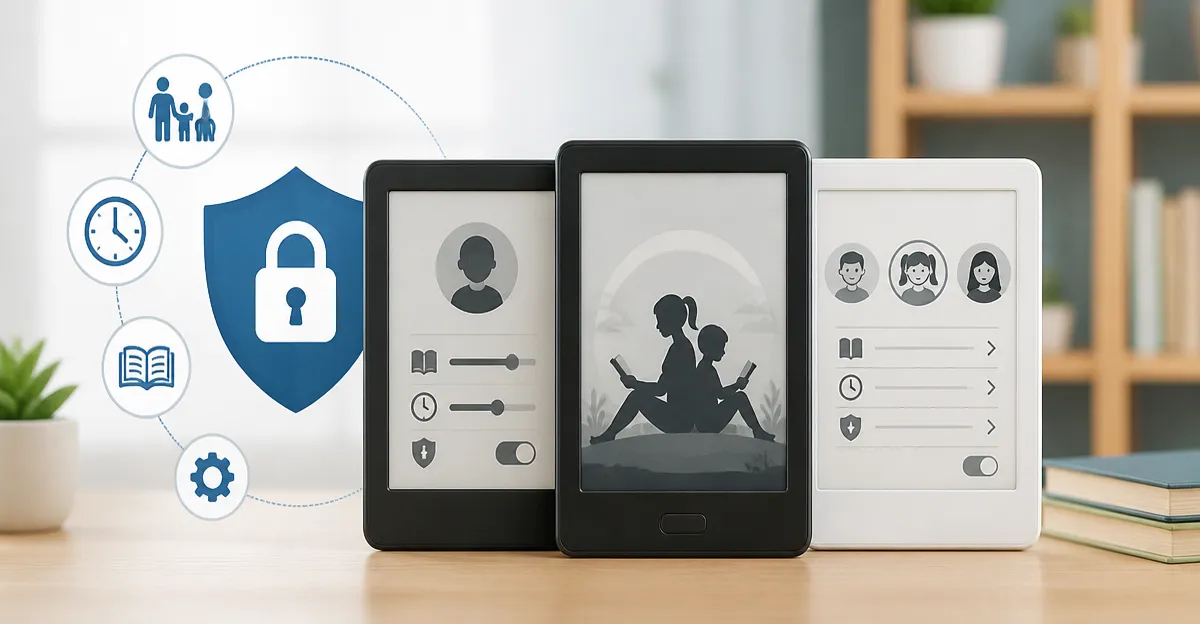
How to Set Up Parental Controls on Pocket E‑Readers (Kindle, Kobo & More): Step‑by‑Step Guide to Manage Content, Profiles and Screen Time
Introduction
Parents increasingly rely on pocket e‑readers to provide children with safe, distraction‑free reading experiences. This guide explains how to configure parental controls, create child profiles, and enforce screen‑time limits on popular devices such as the Kindle Paperwhite Signature Edition, Fire HD 10 Tablet, Kindle 16GB, Kobo Clara Colour and Kobo Clara BW. By following these instructions, one can protect young readers from inappropriate content while still granting access to a curated library of books, comics and educational apps.
The value of this process lies in its ability to balance freedom and protection. Children gain confidence by exploring age‑appropriate titles, and caregivers retain peace of mind knowing that content filters are active. The steps described below are applicable to the latest models released in 2024, ensuring compatibility with current firmware and cloud services.
What You'll Need
- A compatible e‑reader (Kindle Paperwhite Signature Edition, Fire HD 10 Tablet, Kindle 16GB, Kobo Clara Colour or Kobo Clara BW).
- An active Amazon or Kobo account linked to the device.
- Wi‑Fi connectivity for initial setup and cloud synchronization.
- Optional: A wireless charging dock for the Kindle Paperwhite Signature Edition to keep the device powered during extended configuration sessions.
Step 1: Register the Device and Create a Parent Account
The first action is to ensure the e‑reader is registered to a parent account. Power on the device, navigate to Settings, and select "Register" or "Sign In" depending on the operating system. For the Kindle Paperwhite Signature Edition, the registration process is streamlined through the built‑in Wi‑Fi and a simple Amazon login screen. The device offers a 32 GB storage capacity, a 7‑inch glare‑free display, and a battery life of up to 12 weeks, making it ideal for long‑term family use. Price: $249.99, Rating: 4.6/5 (13,001 reviews). Kindle Paperwhite Signature Edition provides auto‑adjusting front light and waterproof protection, which are useful when children read near water or in bright sunlight.
For the Fire HD 10 Tablet, the registration process includes linking the device to an Amazon Kids profile if desired. The tablet features a 10.1" Full HD display, 4 GB RAM, and up to 13‑hour battery life, at a price of $72.99 and a rating of 4.5/5 (44,391 reviews). Fire HD 10 Tablet also supports Alexa voice commands, which can be used to activate parental controls without navigating menus.
When using a Kobo device, sign in with a Kobo account or create one during the initial setup. The Kobo Clara Colour offers a 6‑inch colour E Ink display, 16 GB storage, and waterproof IPX8 rating, priced at $179.98 with a 4.5/5 rating (2,271 reviews). Kobo Clara Colour excels for children who enjoy graphic novels or illustrated textbooks. The Kobo Clara BW provides a black‑and‑white version at $159.99, rating 4.5/5 (643 reviews). Kobo Clara BW is lighter and may be preferable for younger hands.
Completing the registration ensures that all subsequent parental settings are stored in the cloud and can be synchronized across multiple devices.
Step 2: Create Child Profiles on the Device
After the parent account is active, the next step is to create individual child profiles. On Kindle devices, select Settings > Family Library > Add a Child. Provide a name, birth year, and choose a profile picture if desired. The child profile inherits the parent's library but respects the content filters defined in the next step. The Kindle 16GB model, priced at $149.99 with a rating of 4.5/5 (20,581 reviews), offers a lightweight form factor that is comfortable for small hands. Kindle 16GB includes a 6‑inch glare‑free display and up to six weeks of battery life, making it a practical secondary device for a second child.
On the Fire HD 10 Tablet, navigate to Settings > Parental Controls > Add a Child Profile. The tablet supports Amazon Kids+, which provides a curated catalog of books, videos, and apps. The device's 13‑hour battery and durable aluminosilicate glass make it suitable for travel and outdoor use.
Kobo devices use the Kobo Plus subscription to manage child access. Open Settings > Parental Controls, then enable the restriction toggle and create a new profile. The colour version allows children to enjoy highlighted comic panels, while the black‑and‑white version reduces visual clutter for early readers.
Creating separate profiles enables individualized reading statistics, which can be reviewed later to understand each child's interests and progress.
Step 3: Enable Content Filters and Age Restrictions
With child profiles in place, configure the content filters that prevent exposure to mature material. On Kindle devices, go to Settings > Parental Controls, then turn on the filter switch. Choose the appropriate age range (e.g., 3‑5, 6‑8, 9‑12). The filter blocks books with explicit language, adult themes, or violent imagery. Because the Kindle Paperwhite Signature Edition features a distraction‑free environment with no social media apps, it naturally reduces the risk of accidental exposure.
Fire HD 10 Tablet users must enable the Amazon Kids parental controls. Within the Kids profile, select "Content Settings" and set the maturity level. The tablet also allows disabling the web browser and restricting in‑app purchases, which are essential for protecting against unintended spending.
Kobo devices provide a similar age‑based filter under Settings > Parental Controls. The Kobo Clara Colour and Clara BW both support OverDrive integration, allowing caregivers to borrow age‑appropriate titles from public libraries while the filter blocks unsuitable content.
After configuring the filters, test the settings by attempting to open a known mature title. The device should display a message indicating that the content is restricted.
Step 4: Set Screen‑Time Limits and Bedtime Schedules
Screen‑time management is crucial for healthy reading habits. Kindle devices offer a built‑in timer that can be accessed via Settings > Device Options > Screen Timeout. Set the timeout to 30 minutes for younger children and 60 minutes for older readers. The Kindle Paperwhite Signature Edition's battery can sustain weeks of reading, so frequent charging is unnecessary.
Fire HD 10 Tablet includes a dedicated "Screen Time" feature within Amazon Kids. Caregivers can allocate daily minutes, enforce a bedtime schedule, and receive usage reports. The tablet's 13‑hour battery ensures that the device remains operational throughout the allotted period without needing a recharge.
Kobo devices provide a "Reading Time" tracker that displays total minutes read per day. While Kobo does not have a native lockout timer, caregivers can use third‑party Android parental control apps if the device runs a compatible OS, or simply rely on the built‑in bedtime reminders.
Document the chosen limits in a household schedule and discuss them with the children to set clear expectations.
Step 5: Sync Libraries and Manage Purchases
Ensuring that each child has access to a personalized library requires synchronizing the parent's collection with the child profile. On Kindle, use the Family Library sharing option to grant access to selected titles. The Kindle Paperwhite Signature Edition supports wireless charging, which can be useful when multiple devices are charging simultaneously during a family reading session.
Fire HD 10 Tablet users can enable the "Purchase Restrictions" toggle to require a password for every transaction. This prevents accidental purchases of apps or books. The tablet also supports Amazon Kids+ subscriptions, which provide a rotating selection of age‑appropriate titles without additional cost.
Kobo users can add books to the child profile via the Kobo Store or by borrowing from OverDrive. The colour e‑reader excels for graphic novels, while the black‑and‑white version is optimal for text‑heavy novels. Both devices store up to 12,000 eBooks, ensuring that the library will not quickly fill up.
Regularly review the shared library to remove titles that no longer match the child's age or interests.
Tips & Pro Tips
- Use the Kindle Paperwhite Signature Edition's auto‑adjusting front light to reduce eye strain during night reading. The warm light setting is especially helpful for younger eyes.
- Leverage the Fire HD 10 Tablet's Alexa voice assistant to activate parental controls hands‑free. Saying "Alexa, enable kids mode" can quickly lock the device.
- Take advantage of the Kobo Clara Colour's custom highlight colours to organise notes by subject, which can aid school projects.
- Keep the devices updated with the latest firmware to ensure that security patches and new parental‑control features are available.
- Consider using a protective case with a built‑in stand for the Kindle Paperwhite Signature Edition, allowing hands‑free reading while monitoring screen time.
Troubleshooting
Problem: Child profile does not appear on the device.
Solution: Verify that the parent account is fully synced to the cloud. On Kindle, select Settings > Device Options > Restart. On Fire HD 10, sign out and sign back in. On Kobo, refresh the library by pulling down on the home screen.
Problem: Content filter is not blocking mature titles.
Solution: Ensure that the age range is correctly set and that the device is connected to the internet for the filter database to update. Restart the device after adjusting the setting.
Problem: Screen‑time limit does not enforce a lockout.
Solution: Confirm that the timer is enabled in the child profile settings. On Fire HD 10, verify that Amazon Kids+ is active, as the timer only functions within that ecosystem.
If issues persist, consult the official support pages for Amazon or Kobo, or contact their customer service for further assistance.
Conclusion
Setting up parental controls on pocket e‑readers empowers caregivers to create safe, educational, and enjoyable reading environments. By registering the device, creating child profiles, enabling content filters, establishing screen‑time limits, and synchronising libraries, one can protect children while fostering a lifelong love of reading. The recommended devices—Kindle Paperwhite Signature Edition, Fire HD 10 Tablet, Kindle 16GB, Kobo Clara Colour and Kobo Clara BW—each offer unique features that complement the parental‑control workflow. Implementing the steps outlined in this guide will result in a balanced digital reading experience for the entire family.
Products Mentioned in This Guide
Frequently Asked Questions
How do I enable parental controls on a Kindle Paperwhite Signature Edition?
Tap Settings → Parental Controls, set a PIN, then toggle the content filters you want to enforce.
Can I create separate child profiles on a Kobo Clara Colour?
Yes; go to Settings → Profiles, select ‘Add Child Profile,’ and assign age‑appropriate content limits.
What’s the easiest way to set screen‑time limits on a Fire HD 10 tablet?
Open Settings → Digital Parental Controls, enable the feature, and choose daily usage limits for each child profile.
Do the parental control steps work on the 2024 Kindle 16GB model?
They do; the process is identical to other Kindle devices: enable Parental Controls in Settings and configure the desired restrictions.
How can I restrict access to explicit books while still allowing educational apps?
Use the content filter settings to block ‘Mature’ categories but keep the ‘Educational’ or ‘Kids’ categories enabled.