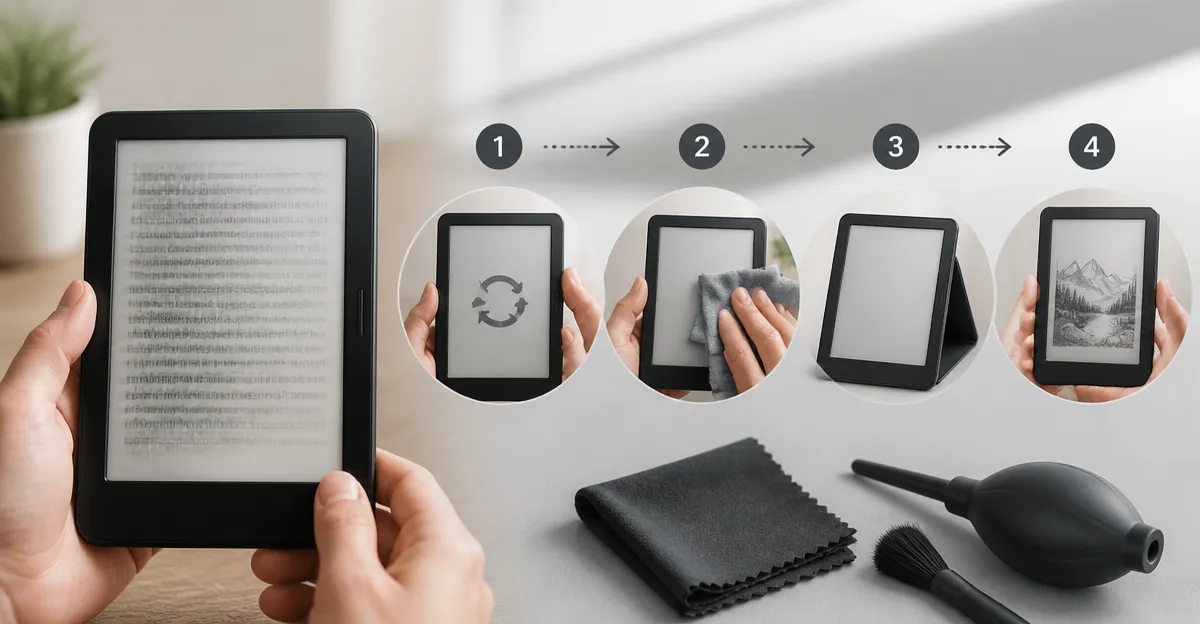
How to Fix E-Ink Ghosting on Your Pocket E-Reader: A Step-by-Step Guide to Clear, Crisp Pages
Introduction
Ghosting on e‑ink displays manifests as faint remnants of previous pages lingering after a page turn. This phenomenon can reduce readability, cause eye strain, and diminish the overall enjoyment of digital reading. In this guide, readers will learn how to diagnose the cause of ghosting, apply practical remediation techniques, and maintain an e‑reader for long‑term clarity. The steps are applicable to popular pocket e‑readers such as the Kindle Paperwhite 16GB, the Kindle Paperwhite Signature Edition, and the Kobo Clara Colour. By following the procedures below, one can restore the crisp, paper‑like quality that e‑ink devices are celebrated for.
What You’ll Need
- A soft, lint‑free microfiber cloth (commonly included with e‑reader cases).
- A small, anti‑static brush for clearing dust from the screen surface.
- Isopropyl alcohol (70% or less) diluted with distilled water – optional for stubborn residue.
- A fully charged e‑reader; for reference, the Kindle Paperwhite 16GB offers up to 12 weeks of battery life, ensuring the device will not power down during troubleshooting.
- Access to Wi‑Fi for firmware updates; the Kindle Paperwhite Signature Edition provides auto‑adjusting front light and wireless charging, making it an ideal model for testing lighting‑related ghosting.
Step 1 – Verify the Ghosting Symptom
Before any corrective action, confirm that ghosting is indeed occurring. Open a high‑contrast book (e.g., a novel with black text on white background) and turn several pages quickly. Observe whether faint text or images persist on the new page. If the effect disappears after a few seconds, the issue is likely temporary and may be resolved by adjusting the refresh rate.
Both Kindle and Kobo devices allow users to manually trigger a full refresh. On the Kindle Paperwhite 16GB, tap the top of the screen, select the three‑dot menu, and enable "Full Refresh". On the Kobo Clara Colour, go to Settings → Display → Refresh Mode and choose "Full Refresh". Performing this step isolates whether the ghosting is software‑driven.
Step 2 – Update Firmware to the Latest Version
Outdated firmware can cause inefficient waveform updates, leading to ghosting. Connect the e‑reader to Wi‑Fi, then navigate to Settings → Device Options → System Updates. Install any available updates. The Kindle Paperwhite Signature Edition frequently receives performance patches that improve refresh algorithms, making it a reliable reference model during this stage.
After updating, restart the device by holding the power button for 10 seconds. This clears temporary caches that might contribute to residual images.
Step 3 – Adjust Front Light and Contrast Settings
Excessive front‑light intensity can exacerbate ghosting on e‑ink panels. Reduce the brightness to a comfortable level (around 40‑50% on most devices). On the Signature Edition, the auto‑adjusting front light will automatically lower brightness in dim environments, reducing the likelihood of ghosting. On the Kobo Clara Colour, use the ComfortLight PRO feature to minimize blue light, which also lessens after‑image retention.
Additionally, enable "Warm Light" or "Night Mode" where available. Warm tones are gentler on the eyes and reduce the visual persistence that some users mistake for ghosting.
Step 4 – Perform a Manual Full Refresh Cycle
If ghosting persists, initiate a manual full refresh sequence. On Kindle devices, this is achieved by holding the power button for 20 seconds while the screen is on; the device will display a brief black screen before returning to the home screen, forcing a complete waveform reset. For Kobo models, select Settings → Device Information → Refresh Screen, then confirm. This process clears any residual charge patterns on the e‑ink matrix.
Repeat the full refresh three times in succession. Users have reported that a triple cycle often eliminates stubborn ghosting caused by prolonged static images (e.g., cover art displayed for extended periods).
Step 5 – Clean the Screen Surface
Physical residue, such as fingerprints or dust, can scatter light and create the illusion of ghosting. Gently wipe the screen with a dry microfiber cloth. For more stubborn smudges, dampen the cloth with a solution of 70% isopropyl alcohol mixed 1:1 with distilled water. Apply the solution to the cloth, never directly to the screen, and wipe in circular motions.
The Amazon Kindle 16GB features a 6‑inch glare‑free display that is particularly sensitive to surface contaminants; careful cleaning is essential to maintain its high contrast ratio.
Step 6 – Reset to Factory Settings (Last Resort)
If none of the previous steps resolve the ghosting, a factory reset may be necessary. Backup any personal documents to the cloud or a computer first. Then navigate to Settings → Device Options → Reset. Confirm the reset and allow the device to restart. This action restores default waveform parameters and clears any corrupted settings that could be causing persistent after‑images.
After the reset, re‑install the latest firmware as described in Step 2, then test the device with a new book. Most users find that ghosting disappears after a clean install.
Tips & Pro Tips
- Avoid static images for long periods. Leaving a book cover on the screen for hours can increase the risk of ghosting. Use the auto‑sleep feature available on the Signature Edition to dim the display when not actively reading.
- Use the built‑in page‑turn buttons. Physical buttons generate a more complete waveform update than touch gestures, reducing residual images on devices like the Kobo Libra Colour, which includes dedicated page‑turn keys.
- Keep the device out of extreme temperatures. Excessive heat can degrade the e‑ink crystals, making ghosting more likely. Store the e‑reader in a cool, dry place when not in use.
- Regularly calibrate the front light. The auto‑adjusting front light on the Signature Edition learns your environment; resetting it weekly can prevent over‑exposure that mimics ghosting.
Troubleshooting
| Problem | Possible Cause | Solution |
|---|---|---|
| Ghosting persists after full refresh | Firmware bug or corrupted waveform table | Perform a factory reset (Step 6) and reinstall latest firmware. |
| Ghosting only appears after reading in bright sunlight | Screen glare causing perceived after‑image | Increase front‑light warmth or use a matte screen protector. |
| Ghosting reappears after a software update | New update changed refresh settings | Manually enable "Full Refresh" in settings and adjust refresh frequency. |
Conclusion
Ghosting on e‑ink pocket readers can be resolved through a systematic approach that includes firmware updates, display adjustments, thorough cleaning, and, if necessary, a factory reset. By employing the tools and techniques outlined above, readers can enjoy clear, crisp pages that replicate the experience of paper without distraction. Maintaining proper lighting, avoiding prolonged static images, and keeping the device clean will prevent future occurrences, ensuring the e‑reader remains a reliable companion for countless hours of reading.
Products Mentioned in This Guide
Frequently Asked Questions
What causes ghosting on e‑ink e‑readers?
Ghosting occurs when residual charge remains on the e‑ink particles, leaving faint images of previous pages after a screen refresh.
How can I quickly clear ghosting without resetting my device?
Use a full-screen refresh by pressing the power button for 10‑15 seconds or navigating to Settings → Device Options → Refresh Display.
What cleaning tools are safe for e‑ink screens?
A soft, lint‑free microfiber cloth and a small anti‑static brush are recommended; avoid liquids and abrasive materials.
Does adjusting the screen refresh rate prevent ghosting?
Setting a higher refresh rate or enabling automatic full refresh after a few page turns can reduce the buildup of ghosting.
How often should I perform maintenance to keep my e‑reader ghost‑free?
Perform a full refresh and gentle screen cleaning every 1‑2 weeks, or sooner if you notice lingering shadows after page turns.