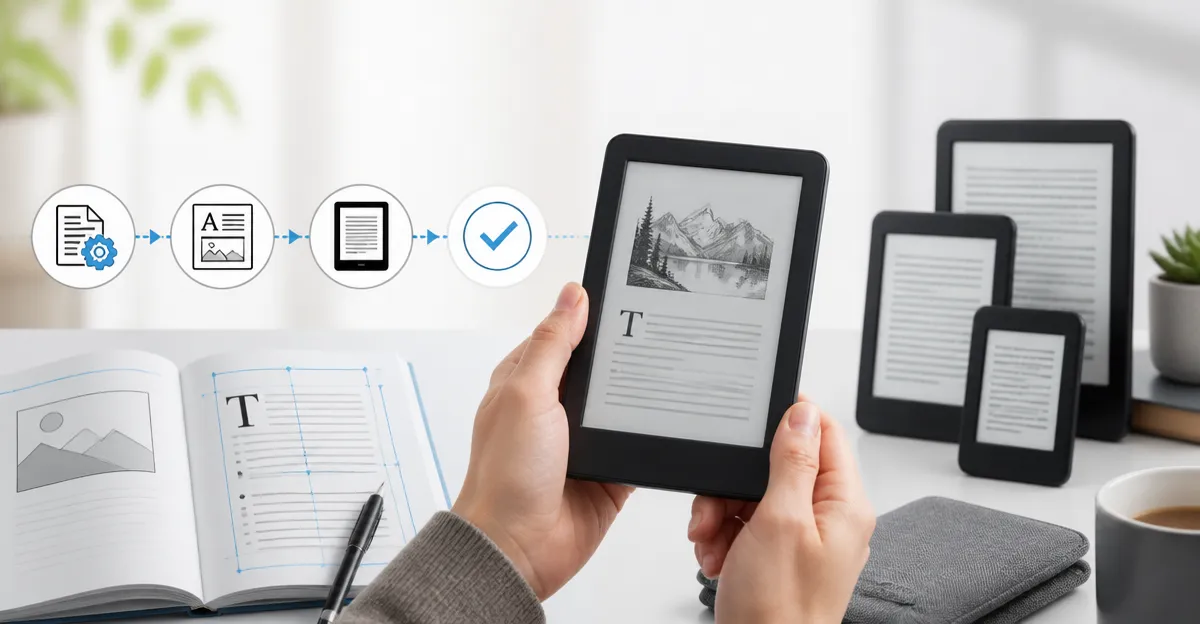
How to Optimize eBooks for Pocket E-Readers: Practical Design & Formatting Tips for Small Screens
Introduction
This guide explains how to prepare eBooks so they display cleanly on pocket‑sized e‑readers. Readers will learn how to choose the right file format, set page dimensions, adjust typography, compress images, and test the final product on actual devices. Mastering these steps reduces reader frustration, improves accessibility, and maximises the value of a small‑screen library.
What You'll Need
- Computer with e‑book conversion software (e.g., Calibre, Sigil)
- Access to a pocket e‑reader for testing – examples include the XTEINK X3 (3.7"), the Kindle Paperwhite (7"), the Kindle (6"), or the Kobo Clara (6")
- USB‑C or magnetic charger compatible with the chosen device
- Optional: protective case for the e‑reader
Step 1: Identify the Target Device
Understanding the physical constraints of the device guides every formatting decision. The XTEINK X3 weighs only 58 g, measures 3.7 inches diagonally, and offers a 5.1 mm thin profile, making it the smallest screen in this guide. Its 16 GB internal storage (expandable to 256 GB) and magnetic pogo‑pin charging system are ideal for on‑the‑go testing.
In contrast, the Kindle Paperwhite provides a 7 inch glare‑free display, 12‑week battery life, and waterproof rating, which is useful for testing larger layouts and outdoor readability. Knowing the exact screen resolution (XTEINK X3: 300 ppi E‑ink, Kindle Paperwhite: 300 ppi) ensures that image dimensions are set correctly.
Step 2: Choose the Optimal File Format
For pocket readers, the EPUB format is universally accepted and supports reflowable text, which automatically adapts to screen size. While Kindle devices also accept MOBI or AZW3, using EPUB simplifies testing across the Kobo and XTEINK devices.
Export your manuscript from Word or Google Docs as a clean DOCX, then import it into Calibre. Convert to EPUB, selecting the following options:
- Set the output profile to "Generic e‑ink" to enforce low‑contrast rendering.
- Disable embedded fonts unless a custom typeface is essential; native fonts reduce file size.
- Enable image compression (max 150 dpi) to keep the final file under 5 MB, which is comfortable for the XTEINK X3's limited storage.
Step 3: Define Page Dimensions and Margins
Small screens require generous margins to avoid accidental edge taps. For a 3.7‑inch display, set the page size to 4.5 × 6.5 inches (approximately 115 × 165 mm). In Calibre's “Page Setup” tab, choose “Custom” and input these dimensions.
Margins of 0.5 inches on all sides provide a comfortable reading area while preserving space for navigation buttons on the XTEINK X3. The XTEINK X3 has physical page‑turn buttons, so a slightly larger margin prevents accidental presses.
Step 4: Optimize Typography
Use a legible serif or sans‑serif typeface such as Open Sans or Georgia. Set the base font size to 12 pt for the XTEINK X3; readers can increase size via device settings, but starting at a readable baseline reduces the need for zoom.
Line spacing of 1.5 and a paragraph indent of 0.2 inches improve readability on low‑resolution screens. Avoid justified text; left‑aligned text prevents uneven word spacing, which can appear jagged on E‑ink.
Step 5: Resize and Compress Images
Images consume the majority of file size on small devices. Resize each image to a maximum width of 800 px, which displays crisply on a 300 ppi screen without unnecessary data. Convert PNGs to JPEG with a quality setting of 70 % to balance clarity and size.
If the e‑book includes color illustrations, consider providing a grayscale fallback for the Kobo Clara, which excels in contrast but may render subtle hues poorly under direct sunlight.
Step 6: Test on Real Devices
Transfer the EPUB to each target e‑reader via USB or Wi‑Fi. The XTEINK X3 uses a magnetic pogo‑pin charger and a micro‑SD slot; copy the file to the card and insert it. Open the book and verify:
- Text does not overflow the screen edges.
- Images appear centered and are not pixelated.
- Navigation buttons on the device respond correctly.
If issues arise, return to Calibre, adjust the offending parameter, and re‑export. The iterative process typically requires two to three cycles before the final file meets all criteria.
Tips & Pro Tips
- Use a protective case. The XTEINK X3 includes an adhesive metal ring for magnetic attachment, but a thin silicone case guards against scratches during travel.
- Leverage VoiceView or ComfortLight PRO. For readers with visual impairments, enabling text‑to‑speech on Kindle devices or ComfortLight PRO on Kobo devices provides accessibility without altering the file.
- Batch‑process images. Use a script (e.g., ImageMagick) to resize and compress all pictures in one command, saving hours of manual work.
- Validate EPUB. Run the file through epubcheck to catch structural errors that could cause crashes on low‑memory devices like the XTEINK X3.
- Consider dark mode. Both Kindle and Kobo devices support dark mode; ensure your CSS does not force a light background, allowing the device to invert colors for night reading.
Troubleshooting
Problem: Text appears cut off on the XTEINK X3.
Solution: Reduce the page width to 4.3 inches and increase side margins to 0.6 inches. Re‑export and test again.
Problem: Images are blurry on the Kindle Paperwhite.
Solution: Increase image resolution to 300 dpi and use JPEG quality 85 %; the Paperwhite's backlight renders higher‑resolution graphics more sharply.
Problem: Device battery drains quickly after loading a large file.
Solution: Remove unnecessary metadata, limit embedded fonts, and ensure image compression is aggressive. The XTEINK X3 reports up to 10 hours of reading on a full charge, but oversized files can reduce that time.
Conclusion
Optimizing eBooks for pocket e‑readers involves careful attention to screen dimensions, typography, image handling, and real‑device testing. By following the six steps outlined above, authors and publishers can deliver a seamless reading experience on devices ranging from the ultra‑compact XTEINK X3 to the feature‑rich Kindle Paperwhite. The result is higher reader satisfaction, lower support tickets, and broader market reach for digital publications.
Products Mentioned in This Guide
Frequently Asked Questions
What file format works best for pocket‑size e‑readers?
EPUB is the most compatible format, offering reflowable text and efficient sizing for small screens.
How should I set page dimensions for a 3‑7 inch e‑reader?
Use a base page size of 4.5" × 6.5" (or 115 mm × 165 mm) and let the device’s layout engine adjust to the exact screen.
What typography settings improve readability on small screens?
Choose a legible serif or sans‑serif font, set line spacing to 1.2–1.4, and keep the font size between 10–12 pt for default scaling.
How can I compress images without losing quality on pocket e‑readers?
Resize images to a maximum width of 800 px, use JPEG with 70‑80 % quality, and strip metadata before embedding.
Why is testing on an actual device essential before publishing?
Real‑world testing reveals layout glitches, font rendering issues, and performance problems that simulators may miss.