Introduction
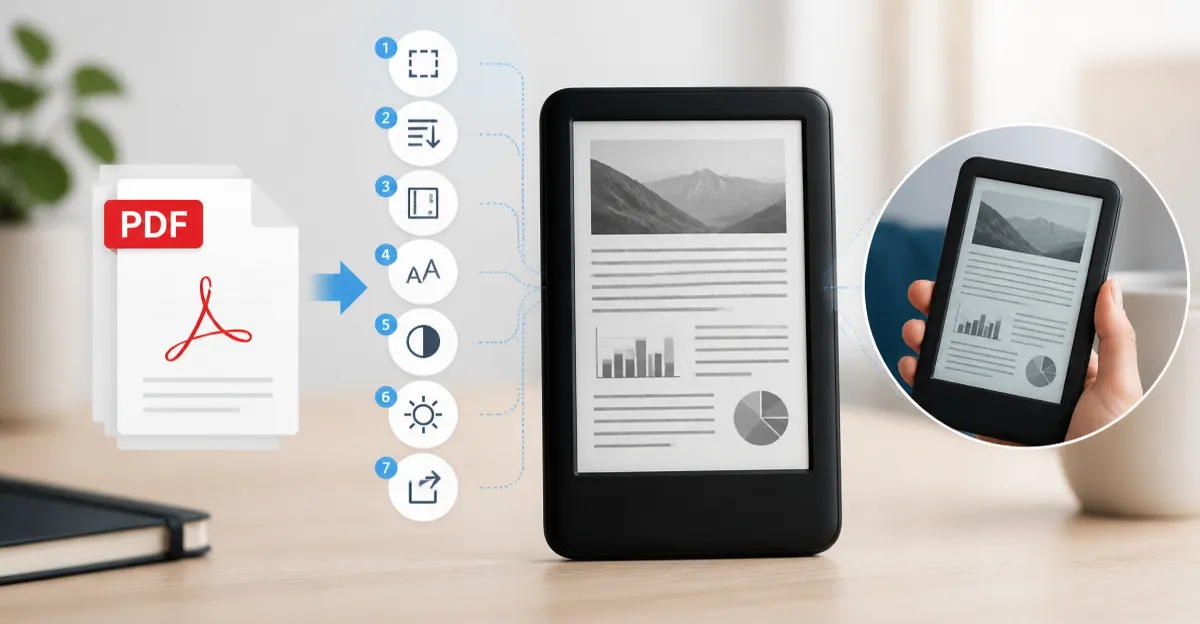
Reading PDFs on a compact e‑reader can feel clumsy because many documents are designed for larger screens. This guide explains seven simple, actionable steps that transform static PDFs into comfortable, reflowable reading experiences. By following each tip, one can reduce eye strain, improve navigation, and make full use of the unique advantages of e‑ink technology. The result is a smoother workflow that benefits students, professionals, and avid readers alike.
What You’ll Need
- A small e‑ink device capable of Wi‑Fi transfer (e.g., Kobo Elipsa 2E).
- A computer with PDF‑editing software such as Calibre, Adobe Acrobat, or free online converters.
- An optional stylus for annotation (the included Kobo Stylus 2 or a compatible active stylus).
- Cloud storage or a USB‑C cable for file transfer.
Step 1: Convert PDFs to a Reflowable Format
The first obstacle is that most PDFs retain fixed layouts, causing excessive scrolling on a 7‑inch screen. Use Calibre on a desktop to convert the PDF to an EPUB file, which automatically reflows text to match the device’s dimensions. During conversion, enable the “Remove margins” option to eliminate unnecessary white space. Once converted, upload the EPUB to the e‑reader via Wi‑Fi or USB‑C.
If one prefers to stay within the PDF ecosystem, the BOOX Go 7 offers an Android‑based environment where third‑party apps like “PDF Viewer Pro” can reflow PDF columns directly on the device. Its 7‑inch HD E Ink screen provides enough resolution to display reflowed text without sacrificing sharpness, and the built‑in front light with warm and cold modes reduces glare during prolonged sessions.
Step 2: Crop Margins to Maximize Screen Real Estate
Even after reflow, many PDFs retain large side margins that waste valuable screen space. On a computer, open the PDF in Adobe Acrobat and select “Crop Pages” to trim the edges uniformly. For on‑device cropping, the Kobo Elipsa 2E includes a built‑in cropping tool accessible from the reading menu; simply tap the crop icon and drag the handles to the desired width.
The device’s 10.3‑inch glare‑free Carta 1200 display ensures that the newly exposed content remains crisp, while the ComfortLight PRO system lets the user adjust brightness and colour temperature to maintain comfort. By eliminating excess margins, one can read more words per page, reducing the number of page turns required.
Step 3: Optimize Font Size and Line Spacing
After cropping, adjust the font size and line spacing to suit personal preferences. On the Kobo, the reading settings panel provides sliders for “Text Size” and “Line Height.” Increasing line height by one notch often improves readability on smaller screens without requiring a larger font. The device’s patented markup technology preserves annotations even when the font size changes, ensuring that highlights and notes remain aligned with the original text.
For users of the Huion Ink EB1011, the dual front‑light system offers day, night, and customizable colour temperatures, allowing one to read in bright daylight or dim environments without eye fatigue. Although the Huion is primarily a digital notebook, its Android 11 OS supports third‑party reading apps that let users fine‑tune typography on the fly.
Step 4: Use Annotation Tools for Active Reading
Active reading involves highlighting, underlining, and adding marginal notes. The Kobo Elipsa 2E ships with the ergonomic Kobo Stylus 2, which offers pressure‑sensitive input and a rechargeable battery. Users can write directly on PDFs, and the device’s patented markup technology ensures that annotations stay anchored even when the font size changes.
For users who require more advanced drawing capabilities, the Huion Ink EB1011’s paper‑feel stylus provides 8192 pressure levels and an eraser tip, making it ideal for sketching diagrams within technical PDFs. Its 64 GB storage (expandable to 2 TB) ensures that large annotated documents never fill the device, and the built‑in Android app store allows installation of specialised PDF annotation tools.
Step 5: Transfer Files Efficiently
Efficient file transfer saves time and prevents data loss. The Kobo Elipsa 2E supports Wi‑Fi syncing with the Kobo Store, enabling one‑click uploads of newly converted EPUBs. Alternatively, the device’s USB‑C port allows direct drag‑and‑drop from a computer, which is useful for bulk transfers of research papers.
The BOOX Go 7 also offers Wi‑Fi and Bluetooth 5.1 connectivity, plus a micro‑SD card slot for expanding storage beyond the built‑in 64 GB. Users can place a micro‑SD card in the slot, copy a folder of PDFs, and then access the files instantly on the device without needing a computer each time.
Step 6: Adjust Lighting for Different Environments
Lighting conditions vary throughout the day, and e‑ink readers must adapt accordingly. The Kobo’s ComfortLight PRO provides adjustable brightness and colour temperature, allowing a cool white for daytime reading and a warm amber for night‑time sessions. Setting the colour temperature below 4000 K reduces blue‑light exposure, which can interfere with sleep cycles.
The reMarkable Paper Pro Move Bundle includes a front‑light that can be toggled between day and night modes, but its colour temperature is fixed. Users who need precise control should consider the Huion Ink EB1011, whose dual‑color front light offers three preset modes (Day, Night, Bed) plus custom temperature adjustments. This flexibility ensures optimal contrast on any surface, from a sun‑lit café table to a dimly lit office.
Step 7: Manage Battery Life for Extended Reading Sessions
Long‑form reading demands reliable battery performance. The Kobo Elipsa 2E advertises several weeks of battery life on a single charge, thanks to its low‑power E Ink display and efficient power management. To maximise endurance, disable Wi‑Fi when not syncing and lower the brightness to the minimum comfortable level.
The BOOX Go 7’s 2300 mAh battery lasts approximately a full day of heavy use, but users can extend it by enabling the “Balanced Mode” refresh setting, which reduces the frequency of full screen refreshes. The Huion Ink EB1011, with its 4650 mAh battery, provides up to 12 days of mixed reading and note‑taking, making it a solid choice for travelers who need both functionality and stamina.
Tips & Pro Tips
- Batch convert PDFs. Converting an entire folder at once saves time and ensures consistent formatting across a library.
- Use cloud backup. Store converted EPUBs in a service like Dropbox; the Kobo can sync directly to the cloud, preventing accidental loss.
- Enable page‑turn shortcuts. On the BOOX Go 7, map the physical side buttons to “Next Page” and “Previous Page” for a paper‑like experience.
- Leverage template libraries. The reMarkable ecosystem offers downloadable templates that can be imported into the Paper Pro Move for structured note‑taking.
- Regularly update firmware. Manufacturers release performance patches that improve refresh speed and reduce ghosting on E Ink screens.
Troubleshooting
Problem: PDF pages appear blurry after conversion.
Solution: Increase the DPI setting in Calibre to 300 ppi before exporting, and ensure the target device’s resolution matches (e.g., 10.3‑inch 1200 ppi for Kobo).
Problem: Annotations disappear after a firmware update.
Solution: Export notes as a backup file before updating, then re‑import them using the device’s “Restore Notes” feature.
Problem: Battery drains quickly when using front light.
Solution: Reduce the front‑light brightness to 30 % and enable auto‑brightness if available; on the BOOX Go 7, switch to “HD Mode” for static reading to conserve power.
Conclusion
By following these seven steps—converting PDFs, cropping margins, adjusting typography, annotating effectively, transferring files efficiently, fine‑tuning lighting, and managing battery life—one can transform a small e‑reader into a powerful PDF workstation. The recommended devices each bring unique strengths: the Kobo Elipsa 2E excels in ergonomics and long battery life, the BOOX Go 7 offers Android flexibility, the Huion Ink EB1011 provides premium stylus performance, and the reMarkable Paper Pro Move Bundle delivers a distraction‑free writing environment. Armed with these tools and best practices, readers will enjoy clearer, more comfortable PDF consumption wherever they go.
Products Mentioned in This Guide
Frequently Asked Questions
How can I make PDFs readable on a 7‑inch e‑ink device?
Convert the PDF to a reflowable format like EPUB using Calibre or an online converter, then transfer the file to the e‑reader.
What software is recommended for converting PDFs for small e‑readers?
Calibre is free and reliable, but Adobe Acrobat and many online converters also work for PDF‑to‑EPUB conversion.
Do I need a stylus to annotate PDFs on a small e‑reader?
A stylus is optional; it enhances note‑taking, but most e‑readers also support basic annotation with finger taps.
What is the best way to transfer converted files to my e‑reader?
Use Wi‑Fi sync, cloud storage, or a USB‑C cable to copy the EPUB files directly onto the device.
Will converting PDFs reduce eye strain on e‑ink screens?
Yes, reflowable EPUBs eliminate excessive scrolling and allow larger text sizes, making reading more comfortable on e‑ink displays.